Build Change Training with an AI Video Generator

Cách xây dựng Social Media Content Strategy cho doanh nghiệp
27 August, 2026
Minimalism trong quản lý: Càng ít quy trình, kết quả càng cao
28 August, 2026
Last updated on 3 September, 2026
Process training usually breaks at the least glamorous moment. A new approval rule reaches the slide deck, but the old screen appears in the video. A safety step is spoken once, while the animation shows the next action too early. Staff remember the smooth sequence and miss the exception that actually changed.
The useful test for an AI Video Generator is therefore not whether it makes a policy look polished. It is whether every approved step, decision point, owner, and stop condition can be recovered from the finished clip. MakeShot can turn a prompt or source image into a video candidate, but the procedure must be locked before motion starts.
A policy-step checksum provides that lock. It gives each required action a source, a visible state, and a review result. The video may make the gaps easier to watch; it may not change the work.
Freeze the Approved Procedure Before Motion Starts
Begin with the version that has authority: the signed procedure, controlled work instruction, approved service script, or released system flow. Record its owner, version, effective date, audience, and next review date. A draft process can be animated for discussion, but it needs a large internal label so nobody mistakes it for training.
Give Every Step a Source and Owner
Split the procedure into actions small enough to verify. “Complete the request” is too broad. “Open the request, check the account number, compare the approval tier, and stop when the documents disagree” produces four inspectable states. Assign the person who can approve each state and the person who will review the clip.
Include branches and stop conditions. If a missing signature sends the request back, that return path belongs in the checksum. A generated transition that glides straight to approval can erase the most important control in the procedure.
Build a Visible State for Each Action
Create a clean source frame for every step. Use an approved screenshot, photographed tool state, diagram, or neutral card. Remove personal data from the source through the organization’s approved method. Do not ask generation to hide a customer name or confidential number after upload.
| Checksum field | What the reviewer checks | Failure signal |
| Required action | One observable verb and object | Several actions collapse into one scene |
| Approved state | Source frame matches the live procedure | Old screen, label, tool, or form appears |
| Decision path | Pass, return, and stop routes remain visible | Animation skips the exception |
| Owner | Named role can approve the state | No one can resolve a mismatch |
This plain table does more useful work than a vague storyboard comment. A reviewer can flag the old approval screen, name its owner, and reject that state without reopening the whole visual concept.
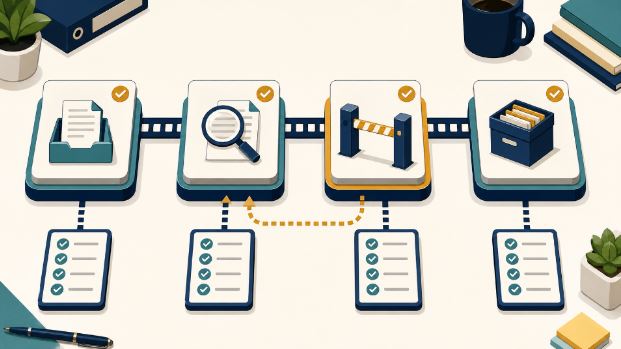
Build a Visible State for Each Action
Animate Only Gaps Between Approved States
Once the source frames pass, decide which gaps need motion. A hand may move from an idle control to an approved button, a document may travel to the next role, or a diagram may reveal the next branch. The motion explains sequence; the source states prove the procedure.
Choose Text or Image Input Deliberately
Use text-to-video when the scene is conceptual and no exact interface, tool, or person must survive. Use image-to-video when an approved frame needs bounded movement around it. MakeShot currently offers several model routes, and supported routes may expose reference images or frame controls. Check the live controls before deciding what can be held constant.
Do not write a prompt that asks the model to reproduce an entire policy. Give it one visual job: move a neutral document from intake to review, show a closed guard before a machine starts, or animate a connector between two approved diagram states.
Write Prompts Around Protected Procedure Evidence
A useful request names both the movement and the protected state. For example: “Move the blank request folder from the intake tray to the review tray. Keep the tray count, folder colour, camera position, labels, background, and final empty approval tray unchanged. Add no words, signatures, people, or status marks.”
The second AI Video Generator checkpoint comes before generation: ask whether the prompt can create a new policy claim. If it asks for a signature, completed badge, compliant posture, or successful outcome, replace that claim with a neutral transition.
Generate One Transition at a Time
Submit the prompt or source image, choose the route whose live controls fit the task, and generate a candidate. Save the chosen model, settings, input version, and output identifier. Model availability and controls can change, so the project record should describe what was actually used.
Keep clips short enough to isolate drift. When one candidate covers five steps, a reviewer may notice the wrong ending but miss the earlier skipped decision. Separate clips let the team replace one bad transition without disturbing approved states.
Run the Policy-Step Checksum Frame by Frame
Place the candidate beside the approved state cards. Watch it once at normal speed, then pause at the start, every decision point, and the final frame. For each pause, name the checksum row it proves and mark any required row that disappeared.
Check Coverage Sequence and Stop Conditions
Mark each step present, absent, early, late, or altered. Confirm that hands, tools, forms, interface states, guards, labels, and roles match their sources. Pay special attention to a smooth movement that crosses a stop condition without waiting for the decision.
Run the audio and captions as a separate evidence layer. Spoken instructions must use the approved wording where exact language matters. Timing should not make a warning sound optional or let an action begin before the condition is complete.
Test the Clip with a Real Decision
Give a reviewer a realistic exception: a missing field, an over-limit amount, an unsafe tool state, or an unavailable approver. Ask where the learner should stop and what happens next. If the answer comes from memory rather than the clip, the training has a coverage gap.
Use pass, repair, or reject. Repair covers a bounded timing, caption, or transition problem. Reject covers a changed step, invented approval, skipped stop, altered interface state, or untraceable source. Do not repair a procedural error with a faster voice-over.
Also inspect the final delivery format. Cropping can hide a warning or decision branch, while compression can make an approved field unreadable. Run the checksum on the exact learning-management, mobile, and presentation exports staff will see.
Hand Off a Revision-Ready Training Pack
The release pack should contain the controlled procedure, source frames, policy-step checksum, exact generation inputs, MakeShot candidate, captions, audio script, review verdict, export variants, owner, and effective date. Link every clip to the checksum row it serves.
When the process changes, update the affected source cards first and identify which transitions touch them. Do not reopen the full video merely because one approval tier changed. The checksum keeps the correction radius visible.
Archive retired exports so staff cannot keep sharing an attractive obsolete version. The published training page should show the current procedure version and provide a route for reporting a mismatch between the clip and live work.
MakeShot is most useful here as a controlled motion layer between approved states. The organization still owns the policy, the stop conditions, and the decision to release. A training video passes when its steps can be audited, corrected, and taught without asking viewers to trust the animation.